
JW Library App: A Guide for Meetings and Daily Reading the Bible
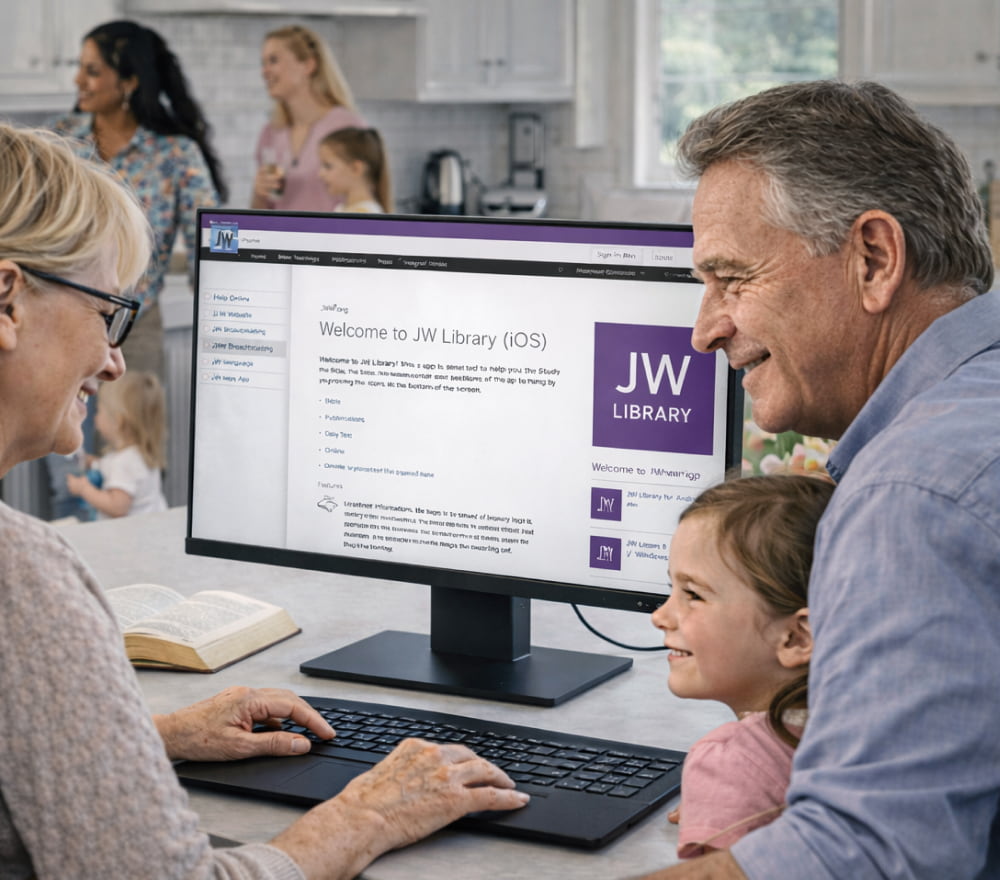
Download JW Library for Free for PC
Install AppDigital study tools can feel overwhelming until you build a simple routine around them. For many publishers, the JW Library app becomes a reliable place to keep publications, videos, and notes together without juggling multiple files. This guide focuses on everyday, practical use so you can move from “installed” to “confident” quickly.
What the Application Helps You Do
At its core, the app is designed to make reading and research smoother, especially when you want quick navigation, clean typography, and consistent access to your library. It also supports preparation before meetings, personal study sessions, and family worship planning.
- Search within publications to find key terms fast
- Save bookmarks and create personal highlights for later review
- Download content for offline use when traveling or commuting
- Switch languages to compare expressions and meanings across translations
- Organize study with tags, history, and quick navigation
Getting Started Safely and Smoothly
Before you add anything, decide what device you’ll use most often: phone, tablet, or computer. Set aside a few minutes to check storage space and your internet connection, since media files can be larger than text publications.
To avoid confusion, the easiest path is to use official app stores and trusted sources, because that reduces the risk of outdated versions or unofficial installers. In most regions, JW Library app free to download choices are available through standard app marketplaces and official channels.
A helpful habit is to download only what you truly use each week, then expand gradually as your routine becomes consistent.
Downloading Publications for Offline Use
Offline access is one of the most practical features, particularly if you travel or have inconsistent connectivity. The best approach is to start small—one Bible, one workbook, and a few meeting resources—then refine your library based on what you actually open.
Many users prefer a straightforward method where they download JW Library app for free using official listings, then add publications from within the app for a cleaner, safer setup.
Recommended Offline Pack
- A primary Bible translation you use most often
- Meeting materials for the current month
- One or two reference works you consult regularly
- Selected videos you plan to share during family worship
Using Notes, Bookmarks, and Highlights Without Clutter
Notes are most useful when they remain searchable and consistent. Instead of writing long paragraphs, try short, clear labels. Pair one idea with one note, and consider a simple format such as “Question,” “Answer,” and “Next step.”
If you’re comparing devices, it helps to focus on how the interface feels rather than chasing every feature. For example, JW Library app download experiences can vary slightly between platforms due to screen size and operating system behavior, even when the core tools are the same.
Installing on Different Devices
Installation usually takes only a few steps, but it’s worth doing carefully so updates and permissions work as intended. If you ever need to reinstall, remove the old version first to reduce conflicts with cached files.
When you plan a fresh setup, a clear sequence is to download JW Library app from an official store listing, confirm permissions, and then open it once before adding publications.
Quick Setup Checklist
- Update your device operating system
- Confirm you have enough free storage
- Connect to a stable Wi-Fi network for large downloads
- Open the app once to complete initial configuration
If you’re helping someone else, keep the steps simple and consistent: first install JW Library app, then show them how to search, bookmark, and download items they will use immediately.
Understanding Free Access and What Free Means Here
People often ask whether there are hidden charges or locked features. The application is designed to provide access without paywalls, and the main “cost” is simply storage space and optional data usage when downloading media.
In everyday conversations, you may hear phrasing like JW Library free app download when someone is describing the initial install step, but it’s still best to choose official sources rather than third-party mirrors. Once installed, the JW Library free app approach makes it easy to add only what you need, which helps keep your device organized and your searches fast.
Feature Overview Table
| Feature | Best Use | Practical Tip |
|---|---|---|
| Search | Finding topics quickly | Use a few keywords, then filter by publication type |
| Bookmarks | Returning to key passages | Name bookmarks by theme, not by date |
| Offline Downloads | Travel and low-signal areas | Download on Wi-Fi, then verify files open without data |
| Notes | Personal study | Keep notes short and consistent for easy searching |
Tips for Family Worship and Group Study
For family worship, a simple rhythm works better than complex plans. Pick one theme, one reading, and one short discussion question, then use the same structure week to week. Add media only when it supports the main point, not as a distraction.
Some families prefer to describe their routine as a free JW Library app workflow because it allows planning without subscriptions, but the real advantage is consistency rather than cost.
Troubleshooting Common Issues
Storage Running Low
- Remove older videos first, since they use the most space
- Keep only current meeting materials offline
- Check your device’s storage manager for the largest files
Downloads Stalling
- Switch from mobile data to Wi-Fi
- Pause and restart the download after a minute
- Restart the device if the progress bar never moves
App Feels Slow
- Close other heavy apps running in the background
- Update the operating system and the app version
- Reduce the number of stored media files temporarily
A Simple Weekly Routine That Actually Sticks
Build habits that match your schedule, not someone else’s. A practical plan is to set one day for downloading, one day for study notes, and a quick review the day before meetings. This keeps your library relevant and prevents endless scrolling.
If you ever see someone label it as app JW Library in a casual recommendation, the most useful next step is to learn the search and bookmark tools first, because they provide the biggest daily benefit.
Frequently Asked Questions
Can I use it on a computer?
Yes, usage depends on the platform and availability in your region. Many people prefer a larger screen for reading and note-taking, especially when preparing parts or reviewing longer sections.
Is offline mode worth it?
Offline mode is especially helpful if your commute includes weak reception or if you travel regularly. Even one small offline pack can remove friction and make study time more predictable.
How do I keep my library organized?
Limit downloads to what you’ll use in the next few weeks, name bookmarks by topic, and keep notes short so they remain searchable.